


To edit an STL file, you must choose between a mesh editor (like Blender or Meshmixer) or a parametric CAD program (like Fusion 360 or FreeCAD). Mesh editors let you sculpt and change the individual triangles directly, while CAD tools let you convert the mesh into a solid body for precise mechanical tweaks. Choosing the right tool depends on whether you want to make organic artistic changes or exact functional adjustments.
Have you ever found the perfect 3D model online, only to realize it is slightly off? Maybe a bolt hole is too small. Or perhaps you want to add your name to a custom phone case. We have all been there. You download the file, open it, and feel stuck.
STL files are the standard for 3D printing. Yet, trying to change them can feel like editing a flat image instead of a raw design file. If you are wondering how to edit STL? files without losing your mind, you are in the right place.
In this guide, we will explore the best tools and techniques for editing. We will look at both free and paid software. By the end of this post, you will be able to customize any 3D model with confidence. Let’s dive in and learn how to make these files work for you.
Key Takeaways
- Mesh vs. Solid: STL files use triangular meshes, which makes them hard to edit directly compared to standard solid CAD files.
- The Best Software: Choose Meshmixer for quick sculpts, Fusion 360 or FreeCAD for exact dimensions, and Tinkercad for simple shapes.
- Two Main Approaches: You can edit the mesh points directly or convert the mesh into a solid model to use standard design tools.
- Watch the File Size: High polygon counts can slow down your computer, so simplify your mesh before you edit.
- Common Pitfalls: Watch out for non-manifold edges and holes that can ruin your final 3D print.
- Repair First: Always clean up and fix errors in your STL file before you start making major changes.
Quick Answers to Common Questions
Can I edit STL files in Tinkercad?
Yes, you can easily import STL files into Tinkercad to add or subtract shapes. It is one of the best free, browser-based tools for beginners.
How do I convert an STL file to a solid body?
You can convert an STL file to a solid body using CAD software like Fusion 360 or FreeCAD. This process converts the mesh triangles into a solid model that you can easily edit with standard sketch tools.
What is the best free software to edit STL files?
The best free software depends on your needs, but Tinkercad is ideal for simple edits, while Blender and Meshmixer are excellent for sculpting. FreeCAD is the best open-source option for precise mechanical modifications.
Why is it so hard to edit STL files?
STL files are difficult to edit because they only store a surface mesh made of flat triangles rather than the original geometric shapes and design history. This makes it hard to select and alter individual features like holes or curves directly.
Can I edit an STL file in AutoCAD?
Yes, AutoCAD can import STL files and convert them into 3D meshes or solids for editing. However, dedicated 3D CAD tools like Fusion 360 often provide a smoother workflow for mesh conversions.
📑 Table of Contents
What is an STL File and Why is it Hard to Edit?
Before we jump into the tools, let us look at what we are dealing with. An STL file represents a 3D object as a shell of triangles. There are no curves, no historical design steps, and no editable features. It is just a collection of points in space connected by lines. This structure is called a polygon mesh.
The Structure of a Mesh
In a standard CAD file, a cylinder is defined as a circle with a height. In an STL file, that same cylinder is made of dozens of flat rectangles split into triangles. Because of this, you cannot easily select a hole and change its diameter. You have to move the individual points that make up the hole. This is why many people ask how to edit STL? files when they first start 3D printing.
Think of it like a digital photo. A vector image can scale up and down without losing quality. A JPEG image is made of pixels. If you zoom in, it gets blurry. An STL is like the JPEG of the 3D world. It is a finished product, not a starting point.
Choosing the Right Tool for the Job
To edit these files, you have two main choices. You can use a mesh editor or a parametric CAD program. Each tool has its own strengths and weaknesses. The best choice depends on what you want to change.
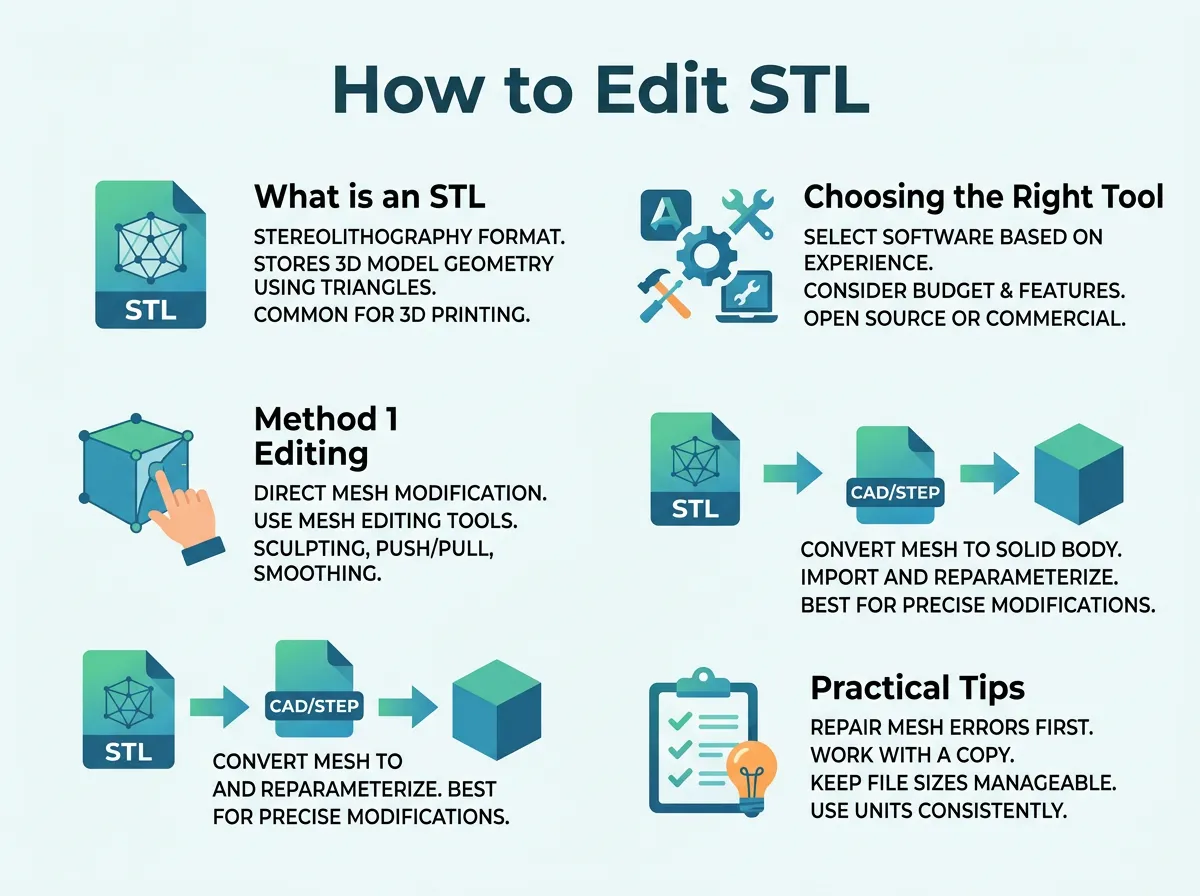
How to Edit STL? — key points at a glance
Mesh Editors vs. Parametric CAD
Mesh editors let you work with the triangles directly. You can stretch, sculpt, and cut them. This is great for organic shapes like statues or characters. If you want to know about the top choices, you can read this list of the best free STL editors to see what is available.
On the other hand, parametric CAD tools work with solid shapes and numbers. They let you convert the mesh into a solid body. Once converted, you can cut clean holes and add precise blocks. This is perfect for mechanical parts, brackets, and gears. If you want a quick start, check out this handy guide on how to edit STLs for 3D printing.
Method 1: Editing with Mesh Software
If you want to make quick, organic changes, mesh software is your best friend. These tools do not care about exact math. They care about the shape of the surface.
Using Tinkercad for Quick Tweaks
Tinkercad is a free, web-based tool. It is perfect for beginners. You do not need to download anything to start. You simply import your STL file and start adding or subtracting shapes.
For example, if you want to add a nameplate, you can drag a text box onto your model. If you want to make a hole, you can place a “hole” cylinder and group the objects. Tinkercad does the hard math in the background. It is the easiest way to learn how to edit STL? files without a steep learning curve.
Sculpting and Repairing with Meshmixer
Autodesk Meshmixer is another great free tool. It is like a Swiss Army knife for mesh files. It lets you sculpt the mesh like clay. You can smooth out rough spots, stretch parts, and even mix two different models together.
Meshmixer is also great for cutting models in half. If a model is too big for your print bed, you can use the plane cut tool. This splits the model cleanly so you can print it in pieces. It also has great tools to fix holes and make models solid.
Method 2: Converting to Solid in CAD Software
If you need exact dimensions, you should use CAD software. This method requires converting the mesh into a solid body. This process is called converting to solid.
Working with Fusion 360
Fusion 360 is a powerful professional tool that is free for personal use. It has great tools for editing meshes. You can import your STL, reduce the polygon count, and convert it into a solid body.
Once it is a solid, you can use the standard sketch and extrude tools. You can select a face, draw a circle, and extrude it to create a perfect hole. This makes Fusion 360 one of the most popular answers to the question of how to edit STL? for engineering tasks.
Using FreeCAD for Open Source Design
If you prefer open-source software, FreeCAD is a fantastic choice. It runs on Windows, Mac, and Linux. FreeCAD lets you import meshes and convert them into shapes. You can then edit those shapes using the Part Design workbench.
To learn the exact steps, you can read this guide on modifying STL files in FreeCAD. It explains how to scale, cut, and join meshes with ease. It is a great way to keep your workflow free and open.
Practical Tips for a Clean Edit
Editing these files can sometimes cause errors. Here are a few tips to keep your files clean and printable.
Keeping Your Mesh Clean
When you edit a mesh, you can easily create errors. These errors include self-intersecting faces and open holes. A 3D printer needs a manifold model. This means the model must be completely water-tight. If you run into issues, you can search for solutions on this Prusa community thread where users share their favorite repair tips.
Managing File Size
Some STL files have millions of triangles. This can make your CAD software run very slowly. Always try to reduce the mesh density before converting it to a solid. Most tools have a Reduce or Decimate feature. This lowers the polygon count while keeping the overall shape. It makes the file much easier to edit.
Conclusion
Learning how to edit STL? files opens up a world of possibilities. You no longer have to settle for designs that are almost perfect. With tools like Tinkercad, Meshmixer, Fusion 360, and FreeCAD, you can change any model to fit your needs. Start with simple edits in Tinkercad. As you get more comfortable, move on to advanced CAD tools. Happy printing!
Frequently Asked Questions
Is there a way to edit STL files online without downloading software?
Yes, you can use Tinkercad to edit STL files directly in your web browser. You simply create a free account, import your file, and use the basic shape tools to make modifications. It is highly convenient for quick edits on any computer.
Can Blender edit STL files?
Yes, Blender is a highly powerful tool for editing STL files. It excels at organic sculpting, vertex editing, and smoothing out complex models. However, it has a steep learning curve for complete beginners.
What does “non-manifold” mean when editing an STL?
A non-manifold mesh has errors like holes, missing faces, or self-intersecting surfaces. These issues make the 3D model impossible to print because the slicing software cannot tell what is inside or outside. You must repair these errors before printing.
How do I reduce the file size of a complex STL file?
You can reduce the file size by using a “Reduce” or “Decimate” tool in software like Meshmixer or Blender. This process merges smaller triangles into larger ones to lower the polygon count. It makes the file much lighter and easier for your computer to process.
Can I edit STL files in SolidWorks?
Yes, you can import STL files into SolidWorks as mesh bodies or solid bodies. SolidWorks has built-in features to convert mesh files, but very large meshes can cause performance lag. It is best to simplify the mesh before importing it.
What is the difference between an STL file and a STEP file?
An STL file is a mesh model made of thousands of tiny triangles, which is great for 3D printers but hard to edit. A STEP file is a high-fidelity CAD format that saves exact curves and solid geometry, making it perfect for editing. Most designers prefer STEP files when sharing projects for collaboration.
