


Opening a STEP file is simple if you use the right tool. You can open these 3D CAD files easily using free online viewers, native CAD programs like Autodesk, or dedicated STEP viewing software. No expensive licenses are needed to quickly view, measure, and inspect your 3D models.
Imagine this scenario. You are working on a new project at your computer. A client sends you an email. It has an attachment with a strange file extension: .step or .stp. You double-click it, but nothing happens. Your computer asks you what program you want to use. You might feel a bit lost. Don’t worry, you are not alone. Many people face this exact situation every day.
This type of file is very common in the world of 3D modeling, manufacturing, and engineering. It is the standard format for sharing 3D designs between different software. But if you do not have expensive engineering software on your computer, you might wonder how to open step files? The good news is that you do not need to spend any money at all.
In this guide, we will show you how to open step files quickly and easily. We will cover free online tools, free desktop programs, and professional software. We will also share some tips on how to fix common issues. By the end of this article, you will be able to view and work with these files like a pro. Let us get started!
Key Takeaways
- Universal Standard: STEP files are neutral 3D CAD files used to share designs across different platforms.
- Free Online Viewers: Web-based tools let you view and measure models in your browser without any software downloads.
- Free Desktop Tools: Open-source programs like FreeCAD let you open, view, and edit STEP files on your local machine.
- Professional Integration: Industry-standard software like AutoCAD and SolidWorks can import and fix STEP files easily.
- Interchangeable Extensions: The .step and .stp file extensions are exactly the same and open with the same tools.
- Easy Troubleshooting: Large files can be slow to load, but closing extra programs or using lightweight viewers solves the issue.
Quick Answers to Common Questions
Can I open a STEP file in AutoCAD?
Yes, you can open a STEP file in AutoCAD by using the IMPORT command in the command line and selecting your file. AutoCAD will then automatically convert the 3D model into a drawing.
Are STP and STEP files the same thing?
Yes, STP and STEP are the exact same file format. The only difference is the file extension name, and they can be used interchangeably by any 3D viewer.
Can I open STEP files for free?
Yes, you can open STEP files for free using browser-based viewers like Autodesk Viewer or free desktop software like FreeCAD.
Can Adobe Illustrator open STEP files?
No, Adobe Illustrator cannot open STEP files directly because it is a 2D vector graphic tool and not a 3D CAD program. You will need to convert the file to a format like DWG first.
How do I convert a STEP file to STL?
You can convert a STEP file to STL using free software like FreeCAD. Simply open the STEP file in the software and export it as an STL file for 3D printing.
📑 Table of Contents
Understanding the STEP File Format
Before we look at the tools, let us understand what this file actually is. STEP stands for “Standard for the Exchange of Product model data.” It is a neutral file format. This means it does not belong to any single company. It allows different 3D design programs to talk to each other without losing data.
Why We Use STEP Files
In the design world, engineers use many different programs. Some use SolidWorks. Others use AutoCAD or Fusion 360. These programs usually save files in their own special formats. But a SolidWorks file might not open well in AutoCAD. To solve this problem, we use a universal format. The STEP format is like a translator. It keeps all the 3D shapes, curves, and dimensions intact. It is a highly reliable universal vector 3D format that ensures perfect accuracy for manufacturers.
STP vs. STEP: Is There a Difference?
You might see some files ending in .step and others in .stp. Are they different? The short answer is no. They are exactly the same. The three-letter extension (.stp) became popular when older computers could only handle three letters in a file extension. Today, both terms are used. You can open them using the exact same tools and methods.
How to Open Step Files with Free Online Viewers
The fastest way to view a 3D design is to use your web browser. You do not need to download or install any software. This is perfect if you only need to look at a file once or twice. It is quick, clean, and completely free. If you want to know how to open step files without installing anything, browser tools are your best friend. Learning how to open step files using online tools is highly convenient.
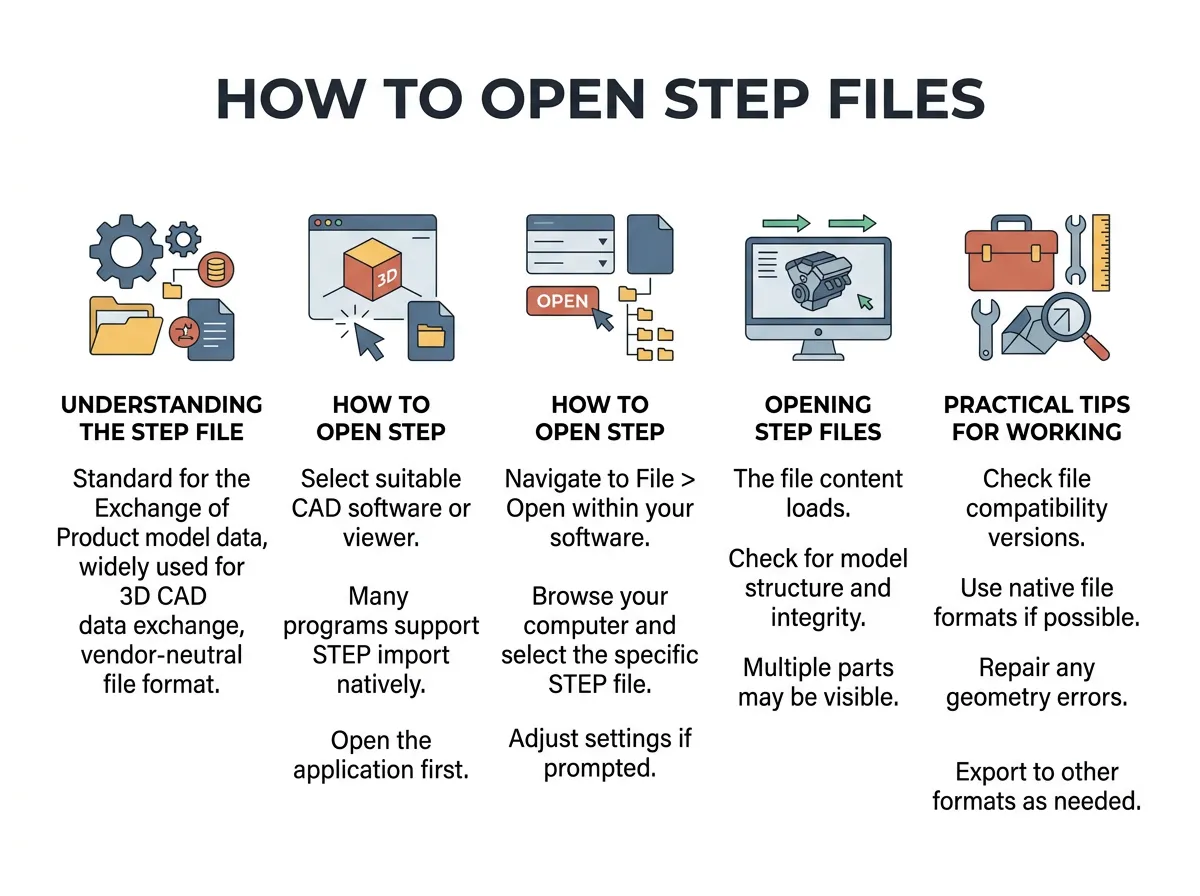
How to Open Step Files? — key points at a glance
Using Autodesk Viewer
One of the best online tools is the Autodesk Viewer. It is a free tool made by a leader in the design industry. To use it, simply visit their website and create a free account. Then, drag and drop your STEP file into the browser window. The tool will load your 3D model in seconds. You can rotate the model, zoom in and out, and even take measurements. This is a great option if you need to show the design to a client during a meeting. It works on both mobile phones and desktop computers.
Other Great Online Options
If you do not want to create an account, there are other choices. For example, some web tools allow you to upload and view models instantly. You can easily drag your design into a web browser. These sites are safe because they do not save your files permanently. They delete them after you close your browser tab. These tools are perfect for quick checks when you are in a rush.
How to Open Step Files with Free Desktop Software
Sometimes, online viewers are not enough. You might have a slow internet connection. Or perhaps you have security concerns about uploading private files to the web. In these cases, installing a free desktop program is the best path. When learning how to open step files on your local machine, software compatibility is key.
FreeCAD: The Ultimate Free Tool
FreeCAD is a wonderful open-source program. It runs on Windows, Mac, and Linux. It is completely free to use for any purpose. When you use FreeCAD, you can do much more than just look at the design. You can also edit the 3D model. To use it, simply open the program, click “File,” and select “Open.” Choose your STEP file, and FreeCAD will import it. You can then view the design from any angle and even make changes to the shapes. This tool is great for makers and hobbyists. If you want to master how to open step files offline, FreeCAD is your best starting point.
STP Viewer
If you want something lighter than FreeCAD, you can use a dedicated STP Viewer software. This tool is very small. It installs in seconds. It does not let you edit the file, but it is incredibly fast at opening them. It displays a tree view of all the parts in the assembly. This makes it easy to hide or show different pieces of the 3D model. It is perfect if you have an older computer that runs slowly.
Opening STEP Files in Professional CAD Programs
If you work in design, you might already have professional software on your computer. Programs like SolidWorks, AutoCAD, and Fusion 360 can open these files natively. Many professionals ask how to open step files in their specialized engineering suites to ensure nothing gets lost in translation.
Importing STEP Files into AutoCAD
AutoCAD is a very famous tool. Many people use it for 2D drafting, but it handles 3D models well too. To learn how to import STP files into AutoCAD, you simply use the “IMPORT” command. Type “IMPORT” into the command line, select the file, and press enter. AutoCAD will convert the STEP file into a drawing. This is a very clean way to integrate 3D models into your existing workflows without starting from scratch.
Using SolidWorks and Fusion 360
SolidWorks makes opening these files incredibly simple. You just click “Open” and select the file. SolidWorks will ask if you want to run import diagnostics. This is a smart feature. It checks the model for any errors or gaps in the surfaces. Fusion 360 is another great choice. It is cloud-based and imports STEP files quickly. It even lets you save them directly to your cloud dashboard. This makes it easy to collaborate with your team.
Practical Tips for Working with STEP Files
Now that you know how to open step files, let us share some handy tips. These tips will help you avoid headaches and save a lot of time during your daily tasks. When exploring how to open step files, checking the file size should always be your first step.
Check the File Size
STEP files can be very large. If a model has many tiny parts, the file size can grow quickly. If you try to open a huge file on a slow computer, the software might freeze. If this happens, try closing other open programs. This frees up memory for your CAD viewer. You can also ask the sender to simplify the model if possible.
Keep Your Software Updated
3D design standards change over time. If you use an old version of a viewer, it might fail to open newer STEP files. Always keep your viewers and CAD software updated to the latest version. This ensures that you can open any file sent by your clients without any errors.
What to Do If the File Is Corrupt
Sometimes, a file will not open no matter what you do. This can happen if the file did not download completely. If you suspect this, ask the sender to compress the file into a ZIP folder before sending it. This prevents file corruption during email transfers. You can also try downloading the file again using a different web browser.
Choosing the Right Tool for You
We have looked at several ways to solve this puzzle. The right method depends on your needs. If you only need a quick look, use an online browser tool. It is fast and requires no setup. If you need to protect your privacy, download a free tool like FreeCAD or a simple STP viewer. If you are a professional, use your existing CAD program like AutoCAD or SolidWorks. Knowing how to open step files is a valuable skill in today’s digital world. It allows you to collaborate with others without any barriers. Now, you can open any STEP file with confidence!
Frequently Asked Questions
What program opens a STEP file?
You can open a STEP file using many free and premium programs. Free options include FreeCAD, STP Viewer, and Autodesk Viewer online. Premium options include SolidWorks, AutoCAD, and Fusion 360.
Can I open a STEP file in SolidWorks?
Yes, SolidWorks can open STEP files easily. You just need to click File, then Open, and select your file. SolidWorks also offers import diagnostics to find and fix any design errors automatically.
Can I edit a STEP file?
Yes, you can edit a STEP file using CAD software like FreeCAD, Fusion 360, or SolidWorks. However, since STEP is a neutral format, editing it might be slightly harder than editing a native CAD file.
Why is my STEP file not opening?
Your STEP file might not open if the file is too large for your computer’s memory or if the file itself is corrupted. To fix this, try using a lighter viewer, closing other programs, or asking the sender to compress the file into a ZIP folder.
Can I open STEP files on a Mac?
Yes, you can open STEP files on a Mac. You can use free web-based viewers in Safari or download Mac-compatible software like FreeCAD and Fusion 360.
Can I view STEP files on my phone?
Yes, you can view STEP files on your phone using online viewers through your mobile web browser. Autodesk Viewer is highly optimized for mobile screens and allows you to rotate and zoom into 3D models easily.
