

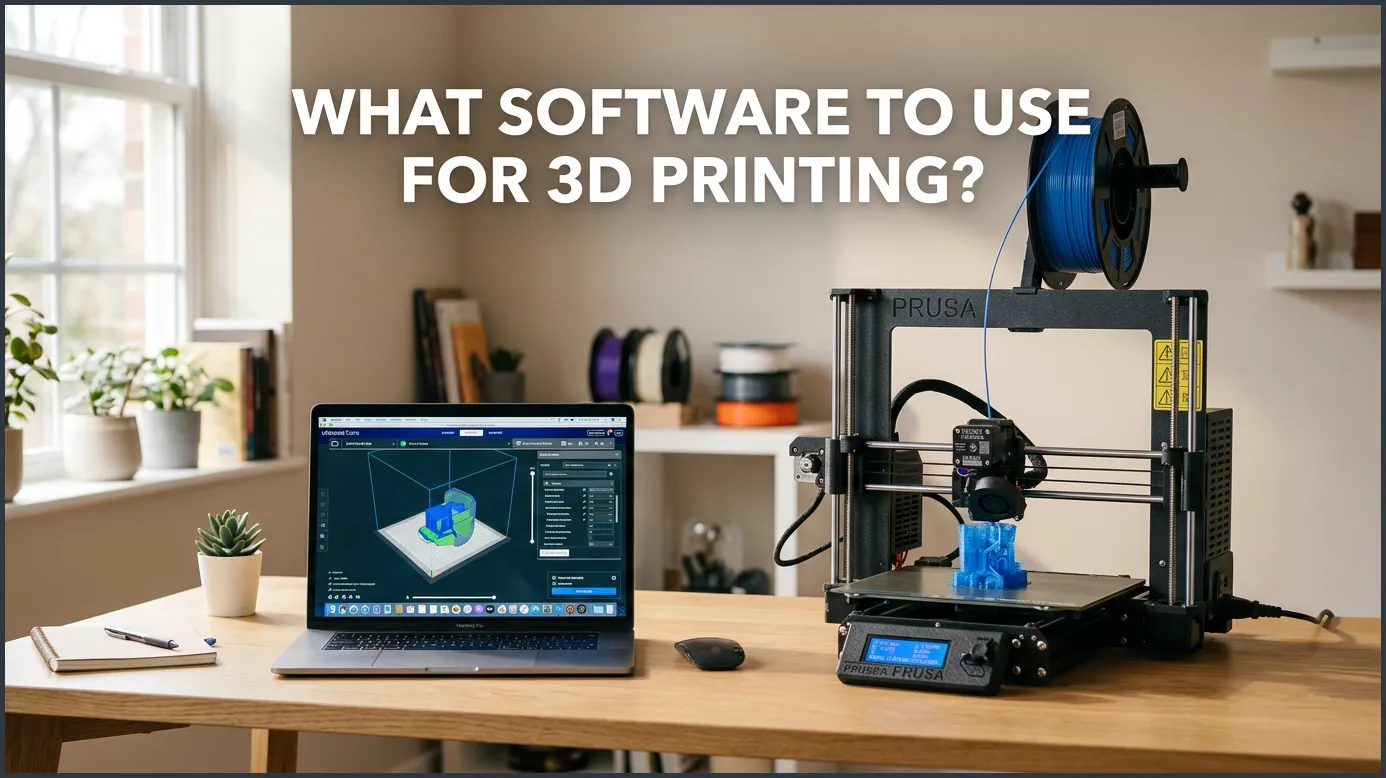
To bring your digital designs to life, you must know what software to use for 3D printing. The process requires a CAD program to design your model, a slicing tool to convert it into printer instructions, and sometimes control or repair software to ensure a perfect physical print.
Imagine the excitement of unboxing your very first 3D printer. You set it up on your desk, plug it in, and watch the tiny lights glow. The machine is ready, but your screen is blank. You want to make something awesome, like a custom phone stand, a toy dragon, or a replacement part for your broken drawer. Yet, you cannot just drag a picture into the printer and hope for the best. You need the right digital tools to bridge the gap between your imagination and the real world.
Getting into this hobby can feel a bit overwhelming at first. You might see terms like CAD, mesh, slicing, and G-code. It sounds like a foreign language! Do not worry. Every single maker started exactly where you are standing right now. Once you break the process down into simple steps, you will see that finding and using these digital tools is actually a lot of fun.
This guide will help you understand the entire software pipeline. We will look at design tools, slicing tools, and repair programs. By the end of this article, you will know exactly what software to use for 3D printing to make your projects successful.
Key Takeaways
- Design Starts with CAD: You need Computer-Aided Design (CAD) software like Tinkercad or Fusion 360 to create or edit 3D models.
- Slicers Are Essential: A slicer tool converts your 3D digital model into G-code layers that your printer can read.
- Free Options Are Powerful: Great free tools like Ultimaker Cura and PrusaSlicer offer advanced features without any cost.
- Mesh Repair Saves Prints: Programs like Meshmixer help fix broken files so they print successfully.
- Your Skill Level Matters: Beginners should start with simple tools like Tinkercad, while experts can use Blender or Fusion 360.
Quick Answers to Common Questions
What is the easiest free 3D design software for beginners?
Tinkercad is the easiest free software because it uses a simple, web-based drag-and-drop system with basic geometric shapes.
Do I need a slicer for 3D printing?
Yes, you must use a slicer because your 3D printer cannot read 3D models directly; it needs the G-code instructions that a slicer creates.
Can I use Blender to design functional mechanical parts?
While you can use Blender, it is designed for artistic sculpting, so CAD software like Fusion 360 is much better for exact measurements.
Are Cura and PrusaSlicer free to use?
Yes, both Cura and PrusaSlicer are completely free and open-source programs that work with most 3D printer brands.
What is G-code in 3D printing?
G-code is the programming language that tells your 3D printer how fast to move, where to go, and what temperature to use.
📑 Table of Contents
The 3D Printing Software Pipeline
To print a physical object, you must take it through three main stages. Each stage uses a different kind of tool. Together, these programs form a pipeline that takes you from a blank screen to a finished print.
1. 3D Modeling (CAD) Software
This is where your idea is born. You use modeling tools to draw, sculpt, or design your object. The result is a 3D digital file, usually ending in .STL or .OBJ. If you do not want to design objects from scratch, you can also download pre-made files from websites like Thingiverse or Printables. However, knowing how to design your own models gives you ultimate creative freedom.
2. Slicing Software
Your 3D printer is not smart enough to understand a 3D model directly. It needs step-by-step instructions. A slicer takes your 3D model and cuts it into thousands of horizontal layers. It then creates a path for the printer nozzle to follow. The slicer saves these instructions as a “G-code” file. Slicing is a vital part of knowing what software to use for 3D printing to ensure your machine behaves correctly.
3. Control and Repair Software
Sometimes, your 3D files have errors, like holes or thin walls. Repair tools fix these issues so your printer does not fail. Control tools let you send files directly to your printer over Wi-Fi and monitor the print using a webcam. These tools are the final touch in a smooth printing workflow.
Top 3D Modeling (CAD) Software
If you want to create your own files, you must choose a design program. The right tool depends on your skill level and what you want to make. Here are some of the best choices available today.
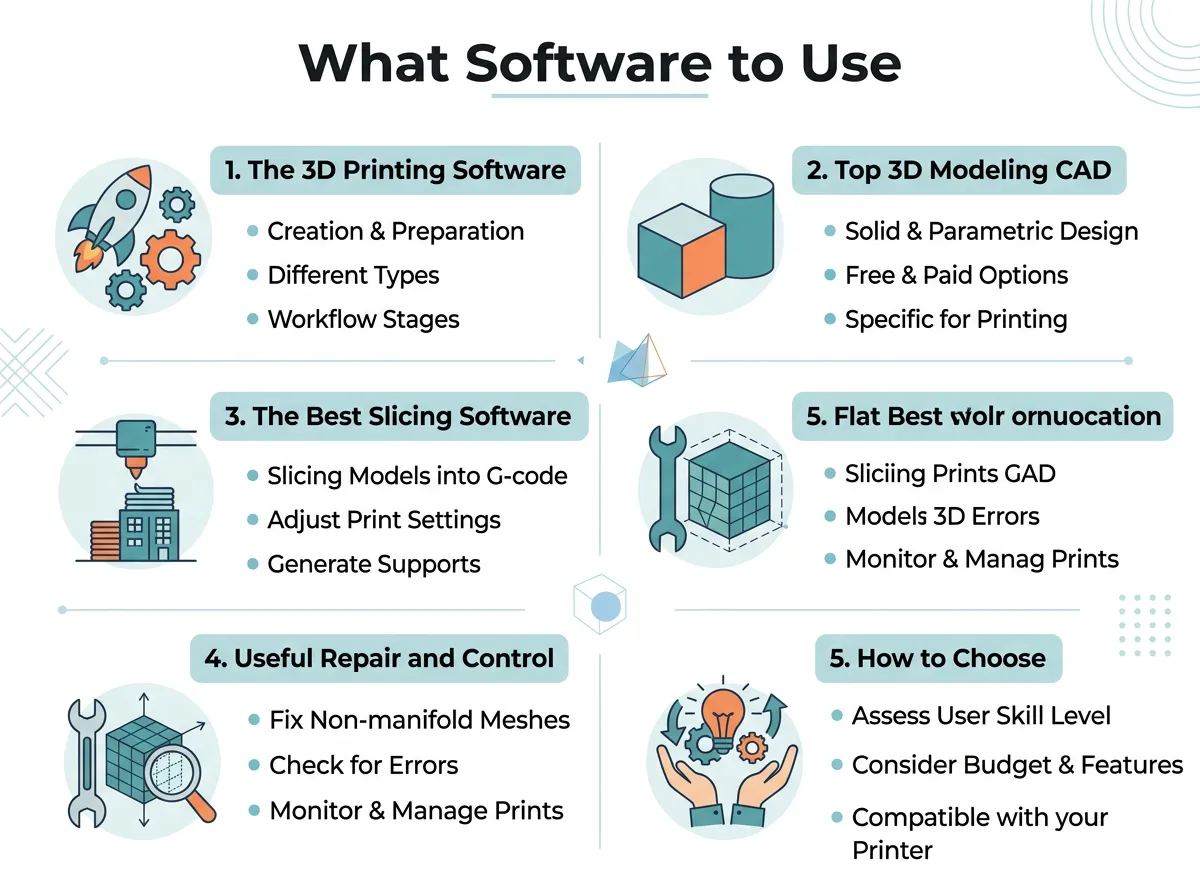
What Software to Use for 3D Printing? — key points at a glance
Tinkercad: Best for Absolute Beginners
Tinkercad is a free, web-based tool made by Autodesk. It runs right in your internet browser, so you do not have to install anything. It uses a simple drag-and-drop system. You build objects by combining basic shapes like boxes, cylinders, and spheres. Tinkercad is perfect for kids, teachers, and adults who want to design simple parts quickly. It is the best starting point when learning what software to use for 3D printing.
Fusion 360: Best for Functional Parts
If you want to design precise, functional objects like gears or brackets, Fusion 360 is the industry standard. It is a professional CAD program that is free for personal, hobbyist use. It allows you to create parametric designs. This means you can go back and change a single measurement, and the rest of your model will adjust automatically. For high-quality engineering, explore Autodesk’s 3D modeling tools for 3D printing to unlock professional results.
Blender: Best for Artistic Sculpting
Not every 3D model is a mechanical part. If you want to create organic shapes like characters, monsters, or jewelry, you need artistic tools. Blender is a free, open-source 3D suite. It features incredibly powerful digital sculpting brushes. You can mold virtual clay into highly detailed figurines. Blender has a steep learning curve, but it is one of the most powerful creative programs in the world.
The Best Slicing Software
Once you have a 3D model, you must slice it. Your slicer is the most important program you will use on a daily basis. It controls your print speed, layer height, temperature, and support structures.
Ultimaker Cura
Cura is the most popular slicer in the world. It is completely free and open-source. It supports hundreds of different 3D printer models. Cura is easy enough for beginners, but it also has over 400 advanced settings for power users. It has a clean interface and updates often with new features. If you are confused about what software to use for 3D printing, starting with Cura is always a safe bet.
PrusaSlicer
PrusaSlicer is another fantastic, free option. Originally made for Prusa printers, it now works with almost any machine. It is known for being incredibly stable and fast. PrusaSlicer has excellent features for painting custom support structures directly onto your model. Many makers prefer its clean layout and highly optimized print settings.
Useful Repair and Control Software
To make your printing journey even smoother, you can add a few extra tools to your toolbox. These programs help you solve common printing issues before they happen.
Meshmixer
Sometimes you download an STL file from the internet, and it refuses to print. It might have microscopic holes or overlapping faces. Meshmixer is a free tool from Autodesk that acts like a digital Swiss Army knife. It can automatically repair broken meshes, hollow out heavy models to save plastic, and split large models into smaller pieces that fit on your print bed.
OctoPrint
OctoPrint is a free tool that runs on a cheap Raspberry Pi computer connected to your printer. It turns your printer into a smart, wireless machine. You can start prints from your phone, watch your print bed through a webcam, and even create beautiful time-lapse videos of your prints growing layer by layer.
How to Choose the Right Software for Your Needs
Choosing your tools does not have to be hard. Think about your goals and how much time you want to spend learning.
If you are a beginner, do not overcomplicate things. Start with Tinkercad to design simple shapes, and use Ultimaker Cura to slice them. This simple combination will teach you the basics without causing any headaches.
As you gain confidence, you can transition to Fusion 360 for exact mechanical parts, or Blender for detailed artistic designs. Always choose the tool that fits your specific project. For more details on educational choices, check out the University of Toronto’s 3D printing software resources to see what tools students and researchers use.
Conclusion
The world of 3D printing is incredibly exciting, and the software is the key that unlocks its potential. You do not need to spend a fortune on expensive programs. The free tools available today are more than enough to create professional-grade prints.
Take it one step at a time. Download a slicer like Cura, play around with shapes in Tinkercad, and run your first print. With a little practice, you will master these digital tools and turn your wildest ideas into physical reality. Happy printing!
Frequently Asked Questions
What software to use for 3D printing if I want to design mechanical parts?
If you want to design precise mechanical parts, Autodesk Fusion 360 is the best software to use. It is free for personal hobbyists and offers parametric tools to adjust measurements easily. Tinkercad is also a good, simpler alternative for basic parts.
Do I have to pay for 3D printing software?
No, you do not have to pay anything to get started. The most popular and powerful tools in the hobby, such as Tinkercad, Blender, Cura, and PrusaSlicer, are completely free to use. Paid software is usually only necessary for industrial, professional-grade engineering.
What does a slicer program actually do?
A slicer program takes your digital 3D model (like an STL file) and cuts it into thin, horizontal slices. It then translates these slices into mathematical coordinates and movements called G-code, which tells your physical printer exactly how to move and extrude plastic.
Can I run 3D printing software on a basic laptop?
Yes, basic slicer programs and web-based design tools like Tinkercad run easily on standard laptops. However, advanced 3D sculpting programs like Blender or heavy CAD tools like Fusion 360 require a computer with a decent processor and dedicated graphics card to run smoothly.
How do I fix a broken 3D model that will not print?
You can use free mesh repair programs like Autodesk Meshmixer or Netfabb to fix broken 3D models. These tools scan your model for issues like non-manifold geometry or open holes and automatically repair them so the file is ready for your slicer.
Can I send files to my 3D printer without using a USB drive or SD card?
Yes, you can use control software like OctoPrint or Duet Web Control to send files to your printer over a local Wi-Fi network. These tools run on microcomputers connected to your printer and let you monitor and start prints remotely.
